
Put Jira Service Management SLAs on your board with BetterBoard
Show Jira Service Management SLAs on BetterBoard cards, find requests nearing a breach, and highlight missed goals on the full board.
On this page
A board full of In progress cards is a lousy way to spot the next SLA breach. Some requests have 20 minutes left before a first response is due. Others have already missed their resolution goal. They need attention now, but their status alone won’t show you that.
Jira Service Management already calculates those SLA values. BetterBoard now puts them on cards and lets you use them in filters and card color rules. The goals, calendars, and pause conditions remain in Jira; the board shows the result where your team chooses what to work on next.
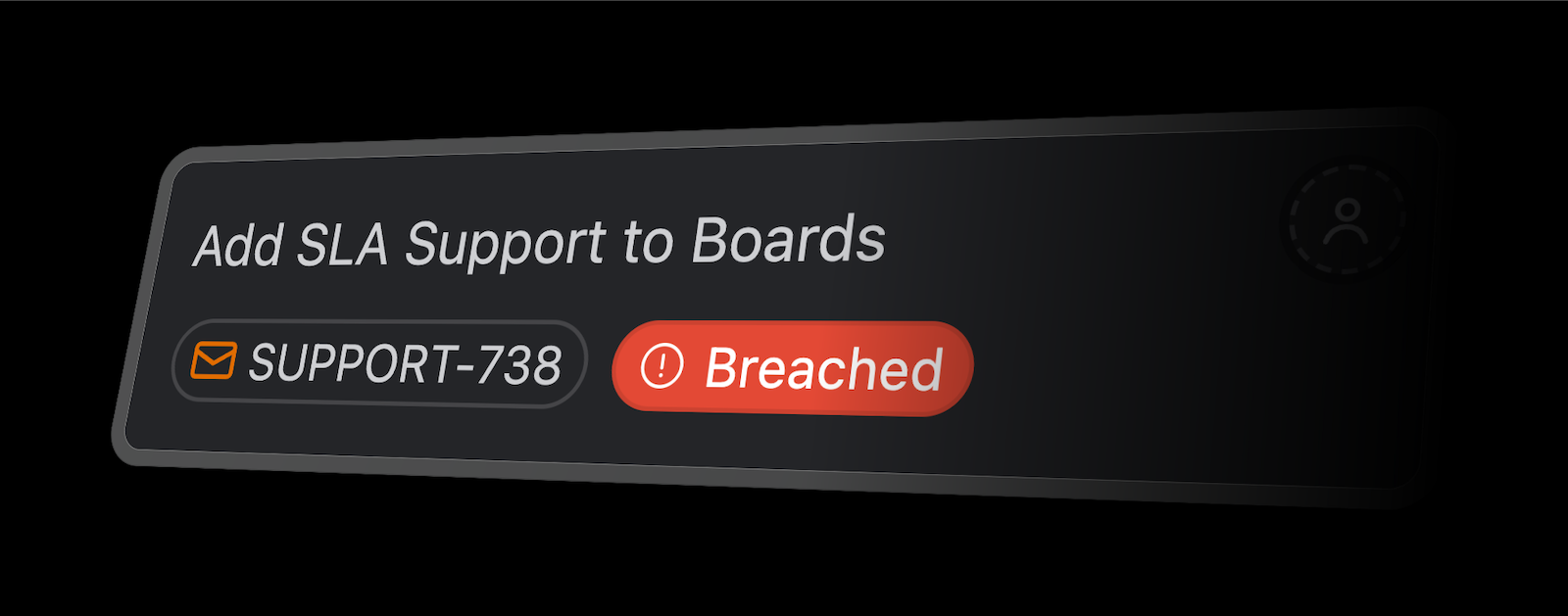
Show Jira Service Management SLA metrics on board cards
Start with the metric that changes your next action. Time to first response helps a team see which requests need a reply. Time to resolution shows the longer-running commitment. If both matter, add both. If the metric isn’t configured yet, create the SLA in Jira Service Management.
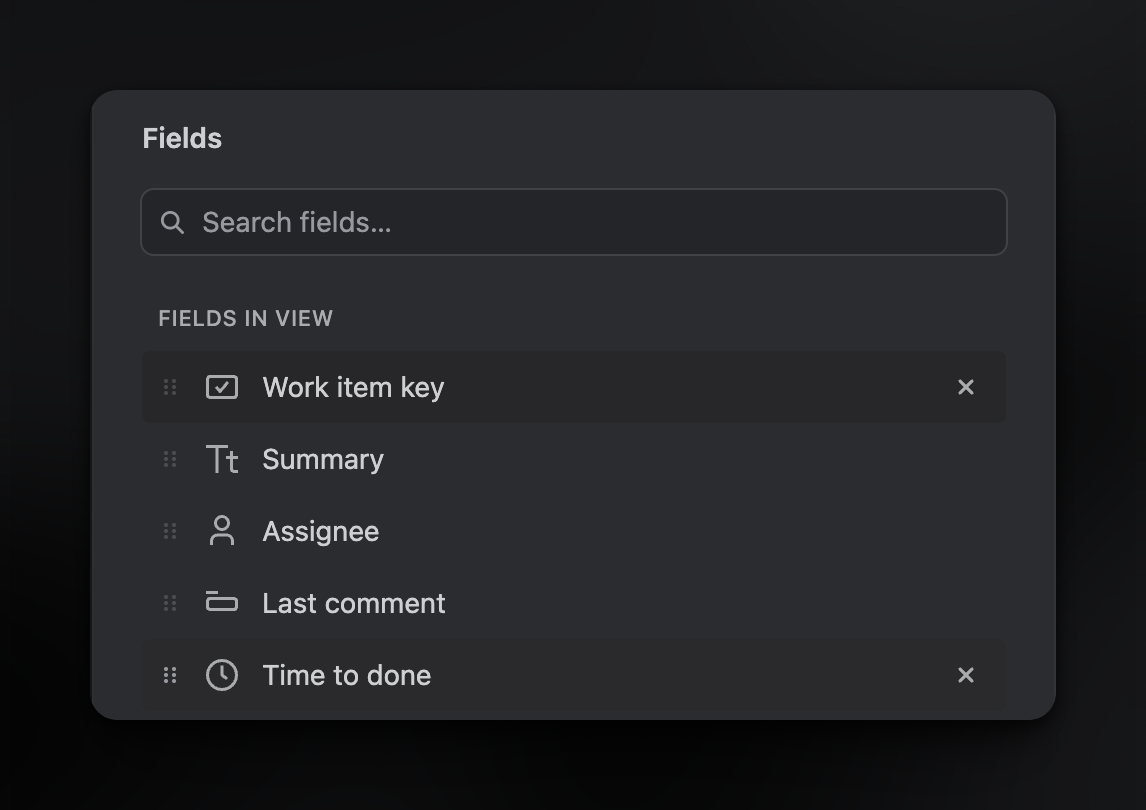
Open Display → Fields on your BetterBoard board. Add the SLA metrics to Fields in view, arrange them alongside the other card details your team uses, and select Save in the board toolbar. Each selected metric appears as its own chip on applicable work items. Hover over or focus a chip to see its name, full state, and last update.
Your metric names come from Jira Service Management. The example below uses Time to done.
An ongoing SLA can show time remaining or overdue. A completed SLA that met its goal shows the service-calendar time used; one that missed its goal shows Breached. The chip can also tell you when a clock is paused or outside working hours. Those distinctions matter more than squeezing another field onto every card, so keep the selection focused on the SLAs your team actually acts on.
Find requests before they breach
For a first-response triage view, select Filter → Add filter, choose Time to first response, and set remaining to 30m. The board now shows requests with up to 30 minutes left on an ongoing, unbreached SLA. Save the board if your team will use that view again at the start of a shift or during a handoff.
Already breached requests do not appear in a remaining view. Use the breached condition to find those separately. You can combine an SLA condition with other board filters when you need a narrower queue; all active conditions must match.
This works for the moment when someone needs a short list to act on. The full board is still useful for a different question: which work needs attention while the team discusses everything in progress?
Mark breaches without hiding the queue
Open Display → Card colors, add a Single color rule, and choose Time to resolution → breached as its condition. We like to use the Chip effect to color the SLA pill red. It makes a missed goal stand out while the card stays in its existing column.
The breached condition follows the most recent SLA cycle Jira reports. It can include a cycle that has already completed, so a red pill does not necessarily mean a clock is still running. That makes the rule useful for spotting missed goals during review, but the Jira work item is where you check the cycle details.
Check work that is waiting
If your Jira Service Management setup pauses an SLA while waiting for a customer, filter that metric by paused. It gives the team a way to review those requests together and check whether each one has a clear next action. BetterBoard reads the paused state from Jira; it does not change the clock.
One timing detail is worth keeping in mind throughout: SLA values on cards are snapshots, not live countdowns. Refresh the board for a newer value before making a time-sensitive decision. Jira’s working calendar and pause rules still determine how much service time is left.
If your team works across several spaces on one board, an SLA metric may apply to some work items and not others. BetterBoard distinguishes Not applicable from Unavailable, so a value it cannot read is not mistaken for an SLA that has not started.