All comparisons

Linear vs Jira

Linear is the cleaner, faster product for teams that want an opinionated way of working. Jira is the more adaptable platform for teams that need custom fields, configurable workflows, granular permissions, and processes that vary across teams. The tradeoff is consistency and speed versus depth and control.

Best for focused, fast-moving teams

Linear

A cohesive issue board built around a consistent property model, fast navigation, and close parity between board and list views.

  • Advantage: Board and list layouts across most issue views
  • Advantage: Flexible grouping and swimlanes from native properties
  • Advantage: Excellent keyboard navigation and bulk actions
  • Advantage: Nested filter logic and easy-to-share custom views
  • Limitation: Less adaptable when teams depend on organisation-specific custom fields

Best for complex, configurable work

Jira

A mature work system whose boards can reflect custom fields, varied workflows, detailed permissions, and work from several spaces.

  • Advantage: Custom fields and configurable workflow transitions
  • Advantage: Map several statuses into one visual column
  • Advantage: JQL-powered boards and swimlanes across spaces
  • Advantage: Column constraints and configurable card colours
  • Limitation: Board capabilities vary by space type and often require administrator configuration

Linear and Jira at a glance

Linear makes common board work feel immediate and consistent. Jira exposes more of the underlying work model, but its most flexible board capabilities are concentrated in company-managed software spaces and often depend on JQL or board administration.

Supported Limited Not available
Feature Linear Native issue board Jira Jira Cloud boards
Layout and structure
Board and list layouts Move between visual and tabular views of the same work
Supported: Most issue views switch between board and list while retaining the same context
Limited: Board and list are separate Jira views with capabilities that vary by space type
Columns by property Choose which work property defines the board columns
Supported: Group by status, project, priority, cycle, label, team, and other native properties
Limited: Columns represent workflow status, with several statuses optionally mapped into one column
Swimlanes Add a second dimension to the board
Supported: Sub-group by team, cycle, assignee, project, and other supported properties
Limited: Company-managed boards support rows by query, story, assignee, epic, or space
Cross-team boards Bring work owned by several teams into one board
Supported: Create an All teams or multi-team custom view and refine it with filters
Supported: Create a company-managed board from a saved filter that includes several spaces
Column limits Make work-in-progress constraints visible
Not available: No native per-column work-in-progress limits documented for issue boards
Supported: Set minimum or maximum work-item constraints on board columns
Cards and fields
Custom fields Represent organisation-specific data on work items
Limited: Uses a defined issue-property model with labels and label groups
Supported: Create custom fields and use supported fields throughout Jira
Configurable card properties Choose which information appears on each card
Supported: Show a broad set of supported native properties; descriptions stay off cards
Supported: Show many standard fields and supported custom fields, depending on the board type
Conditional card colours Use card colour to reveal risk, ownership, or urgency
Limited: Uses native property colours and visual treatments
Supported: Company-managed boards can colour cards by type, priority, assignee, or JQL
Time in status See how long work has remained in its current state
Supported: Display, order, and filter issues by time in status
Limited: Days in column uses visual indicators on company-managed boards rather than exact card values
Views and filtering
Advanced filters Build precise board views from several conditions
Supported: Nested AND and OR groups plus AI-assisted filtering
Supported: JQL supports highly expressive board filters, swimlanes, and quick filters
Saved and shared views Keep reusable board configurations for different jobs
Supported: Save filtered boards as personal, team, or workspace custom views
Supported: Build shareable boards from saved filters and add reusable quick filters
Personal display preferences Change the presentation without changing it for everyone
Supported: Keep display options personal or set a shared default for the view
Limited: Core board configuration is shared and generally controlled by space or board admins
Delivery and workflow control
Scrum sprints and reporting Plan work in timeboxes and inspect delivery progress
Limited: Cycles provide repeating 1–8 week timeboxes with automatic rollover
Supported: Scrum boards add sprint goals, backlogs, future and parallel sprints, burndown, and sprint reports
General workflow automation React to changes and automate multi-step processes
Limited: Built-in cycle, workflow, and integration automations cover common product-development patterns
Supported: Build rules with triggers, conditions, branches, smart values, JQL, and actions
Workflow transition rules Control which moves are allowed and what each move requires
Limited: Teams configure statuses and their order without Jira-style transition rules
Supported: Restrict transitions, request input, validate fields, and run post-transition actions
Permissions and governance Control access and administration as the organisation grows
Limited: Workspace roles, team permissions, and private teams cover common access patterns
Supported: Permission schemes, space roles, work-item security, and workflow permissions provide granular control
Board interaction
Keyboard navigation and commands Navigate and act without reaching for the mouse
Supported: Extensive two-dimensional navigation, selection shortcuts, and a command menu
Limited: Shortcuts cover navigation and common actions, with fewer board-specific commands
Bulk editing from the board Update several selected cards together
Supported: Multi-select and update common properties through the toolbar or command menu
Supported: Multi-select software-space cards and continue through Jira’s bulk-change flow
Drag with workflow rules Move cards while respecting the underlying workflow
Supported: Dragging adopts the destination grouping property
Supported: Dragging transitions status while enforcing permissions, validators, and workflow rules

Where Linear feels faster

Linear reduces the distance between seeing work and changing it. The board, list, shortcuts, selection model, and command menu share the same interaction patterns, so everyday board work needs less configuration and fewer context switches.

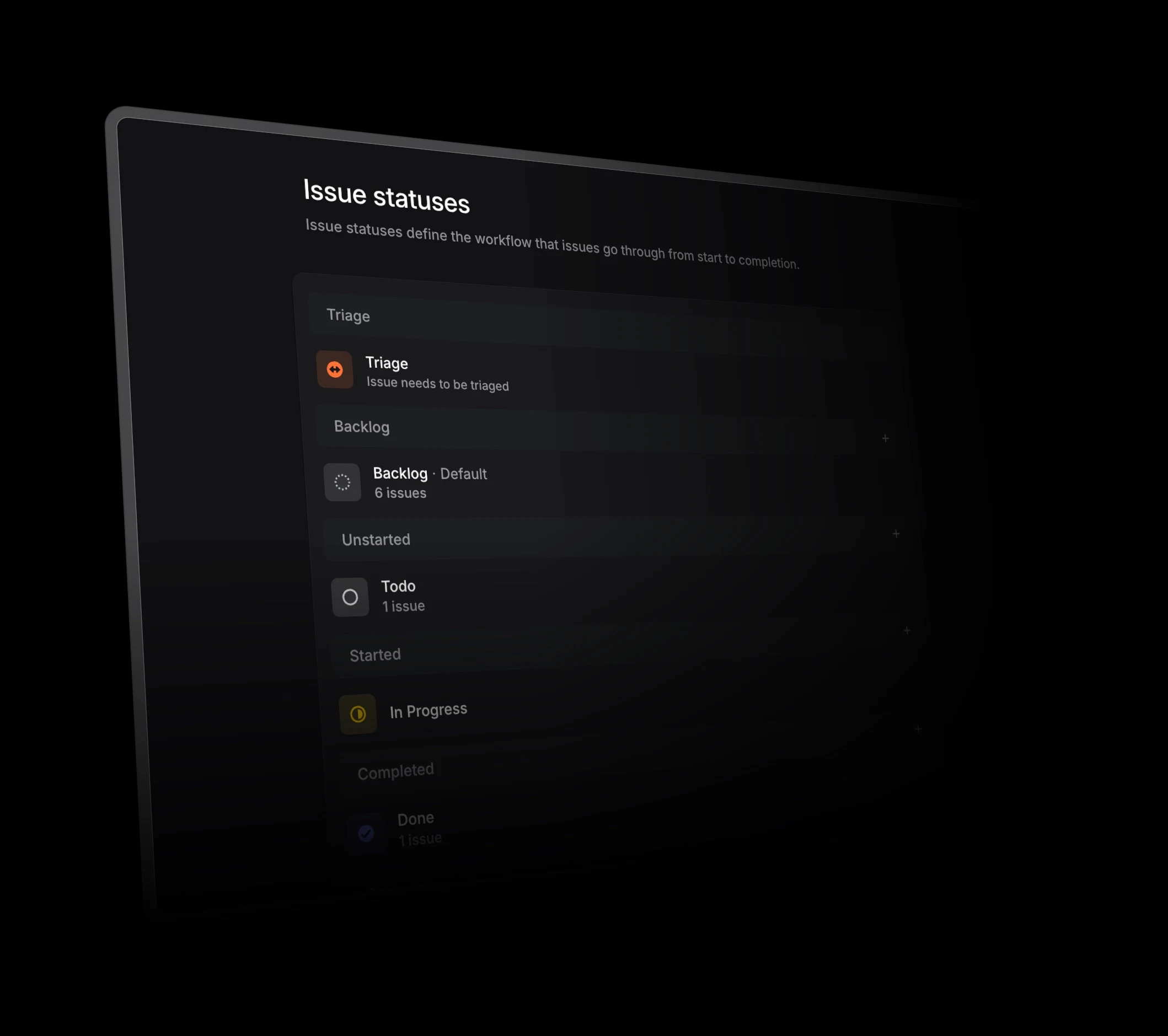
Linear issue status settings with a short standardised workflow
Linear keeps team workflows intentionally compact, with statuses organised into a small set of standard categories.

Keyboard use is a first-class path

Navigate in two dimensions, select one or many issues, move work, and open commands without leaving the keyboard.

Change grouping, sub-grouping, ordering, and visible properties from one display menu, then save the result as a custom view.

Where Jira offers more control

Linear lets each team define its statuses and their order, but its workflow model is intentionally lightweight. Jira adds transition rules, validation, automation, permissions, and Scrum controls around the board. That brings more administrative weight, but substantially more process control.

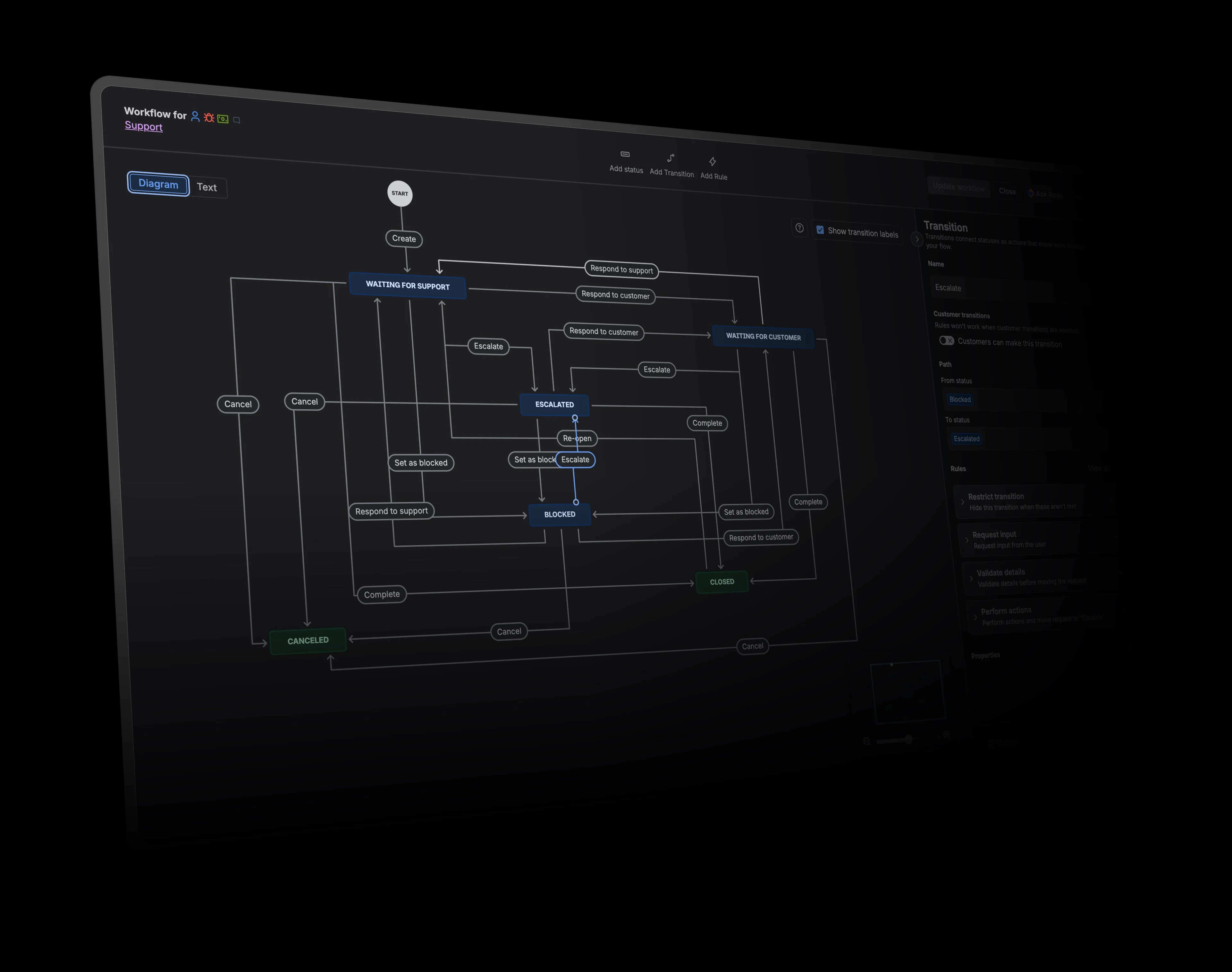
Jira workflow editor showing statuses, transitions, and workflow rules
Jira workflows can model many statuses, transitions, restrictions, validation rules, and follow-up actions.

Restrict which moves are available, ask for input, validate required data, enforce permissions, and perform follow-up actions when the status changes.

Plan from a backlog, set sprint goals and dates, run parallel sprints when needed, and review delivery through burndown and sprint reports. Linear Cycles provide a lighter recurring timebox.

Combine work-item, sprint, version, schedule, development, and deployment triggers with conditions, branches, JQL, smart values, and actions.

JQL can shape the entire board

Use saved queries to define board scope, cross-space membership, quick filters, swimlanes, and conditional card colours.

Choose based on your operating model

The decisive question is not which interface looks newer. It is how much variation the board needs to represent and how much configuration the team is prepared to own.

Choose Linear for consistency

Linear is the stronger fit when teams value a cohesive interaction model, rapid keyboard workflows, and standardised ways of working that require less configuration and administration.

Choose Jira for adaptability

Jira is the stronger fit when the board must respect custom fields, complex workflows, permissions, cross-space queries, and established Atlassian processes, and the organisation is prepared to own that configuration.