
How to publish release notes from Jira tickets
A practical Jira release-notes workflow: select shipped work, turn it into a customer-ready draft, review it, and publish it for customers and stakeholders.
On this page
Teams can publish release notes from Jira by selecting the work that has actually shipped, turning those tickets into a plain-language draft, reviewing it for accuracy, and publishing the approved update where their audience will see it. The important part is not generating a list of Jira issues; it is turning that list into an update customers can understand and trust.
Jira can generate version-based release notes and publish a draft to Confluence. That is useful when your release process is organised around versions and your audience works in Confluence. If you need a customer-facing announcement, an embedded changelog, or a shared update across several channels, you need a publishing workflow that carries the approved update beyond Jira.
Choose the right publishing route first
There is no single best destination for every release note. Choose the route based on who needs the update and how they will use it.
| If you need to… | A practical route | Keep in mind |
|---|---|---|
| Create a version-based record for an internal team | Generate release notes from a Jira version and create or copy the result into Confluence | Jira’s native release-note workflow is version-based. Its supported fields and formats have limitations. |
| Give customers and stakeholders a clear update they can revisit | Publish an announcement page or an embedded changelog | The update needs customer language, editorial review, and a destination outside the project workspace. |
| Keep documentation and team communication in sync | Publish the approved update to Confluence and notify the team in Slack | Make one person accountable for the final review, even when drafting is automated. |
In Jira Cloud, teams can generate release notes from a version, choose the work-item fields to include, and create a Confluence page when Jira and Confluence are on the same site. Jira also documents limits around some rich content and Markdown copying. See Atlassian’s release-notes documentation for the native workflow.
1. Select work that has shipped
Start with a clear inclusion rule. A ticket belongs in release notes only when it is available to the people who will read the update. For many teams, that means filtering completed Jira work by status and timeframe. For version-based releases, it can mean choosing the work in the released version.
Then remove work that is useful internally but not meaningful to readers: chores, implementation-only tasks, duplicate tickets, and unfinished work. A shorter, accurate update is more useful than a complete dump of your backlog.
Before you draft, ask these questions for every candidate ticket:
- What changed for the customer or stakeholder?
- Is it available now, and to whom?
- Does the reader need to do anything differently?
- Is there a limitation, migration step, or known issue worth explaining?
2. Turn Jira tickets into a customer-ready draft
Jira tickets give you the source material. They rarely give you the finished announcement.
Write the outcome first, then add the detail that helps a reader act. For example, replace an internal description such as “Added role-based filter support to the dashboard query” with “You can now filter the dashboard by role, so each team can focus on the work relevant to them.”
A useful release-note entry usually answers three things:
- What changed? Name the capability in the reader’s language.
- Why does it matter? Explain the practical outcome.
- What should I do next? Link to guidance, call out a setting, or say that no action is needed.
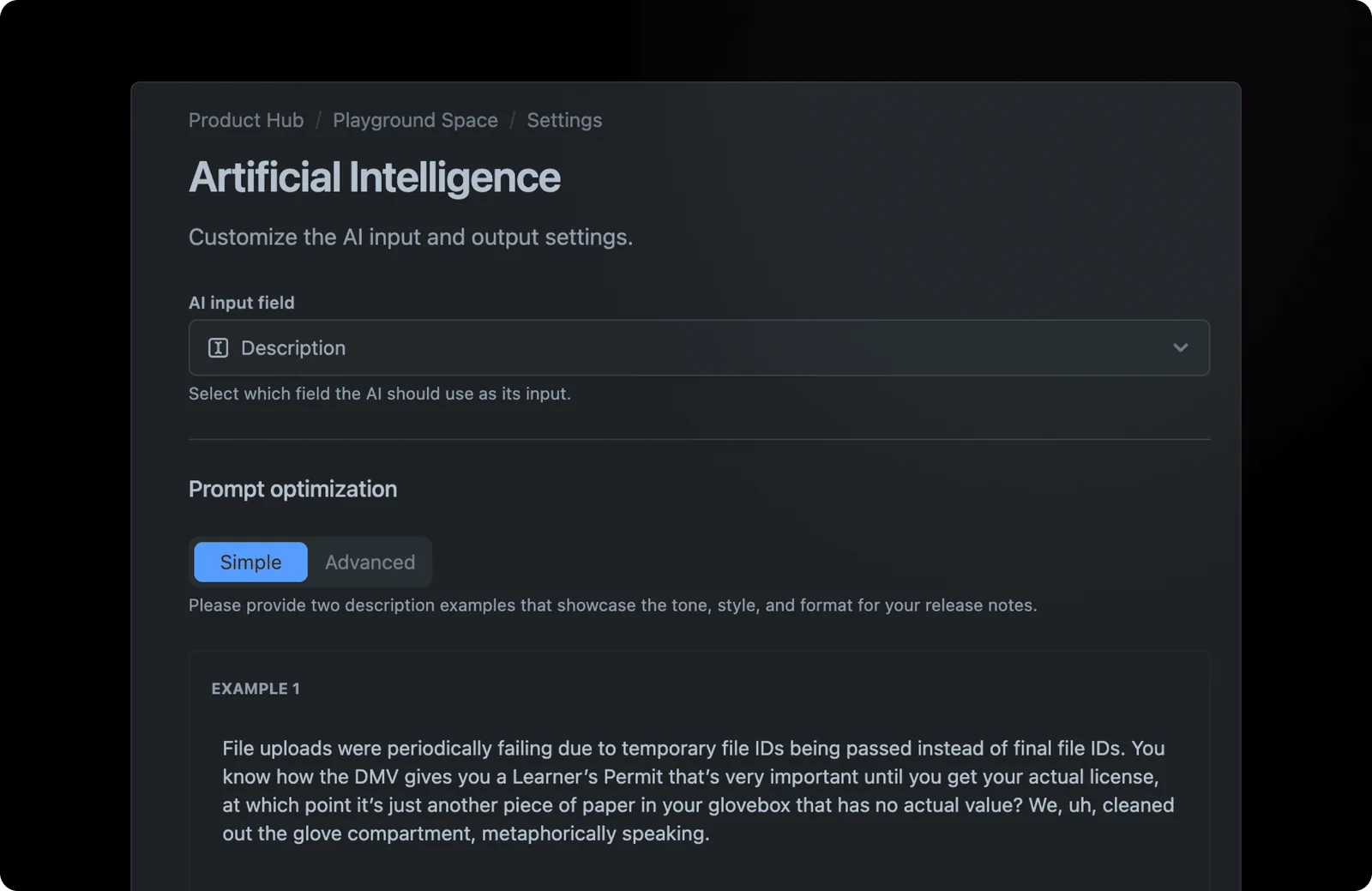
AI can help create a first draft from selected Jira work, especially when your team has a consistent voice and a repeatable structure. It should not decide what shipped, what is safe to announce, or whether the draft is correct. For more guidance on writing the update itself, see how to write effective release notes.
3. Review before you publish
Automating the first draft does not remove the editorial review. Give a product manager, release manager, or subject-matter expert a clear review gate before publication.
Use this checklist:
- Confirm every item is in production or otherwise available to the intended audience.
- Check names, links, screenshots, and customer-facing terminology.
- Remove internal implementation details and anything that should not be public.
- Add context for changes that affect existing workflows.
- Make sure the headline and opening explain the most important change, rather than mirroring Jira ticket titles.
This review step is where teams protect customer trust. It is also the best place to decide whether a small change should be grouped into a broader update instead of announced on its own.
Example: keep control of the draft
Consider a Jira ticket titled “Add role predicate to dashboard query.” The following is an illustrative editing example, not a captured AI response or a claim about a shipped feature.
| Stage | Example | Editorial decision |
|---|---|---|
| Jira input | Add role predicate to dashboard query | Confirm the customer capability is released, not just the underlying engineering task. |
| Initial draft | Dashboard role filtering is now available | Check who has access and whether setup is required. |
| Edited announcement | Filter the dashboard by role to focus on your team’s work. Choose a role from the filter menu. | Verify the UI wording, add a useful screenshot and link to instructions. |
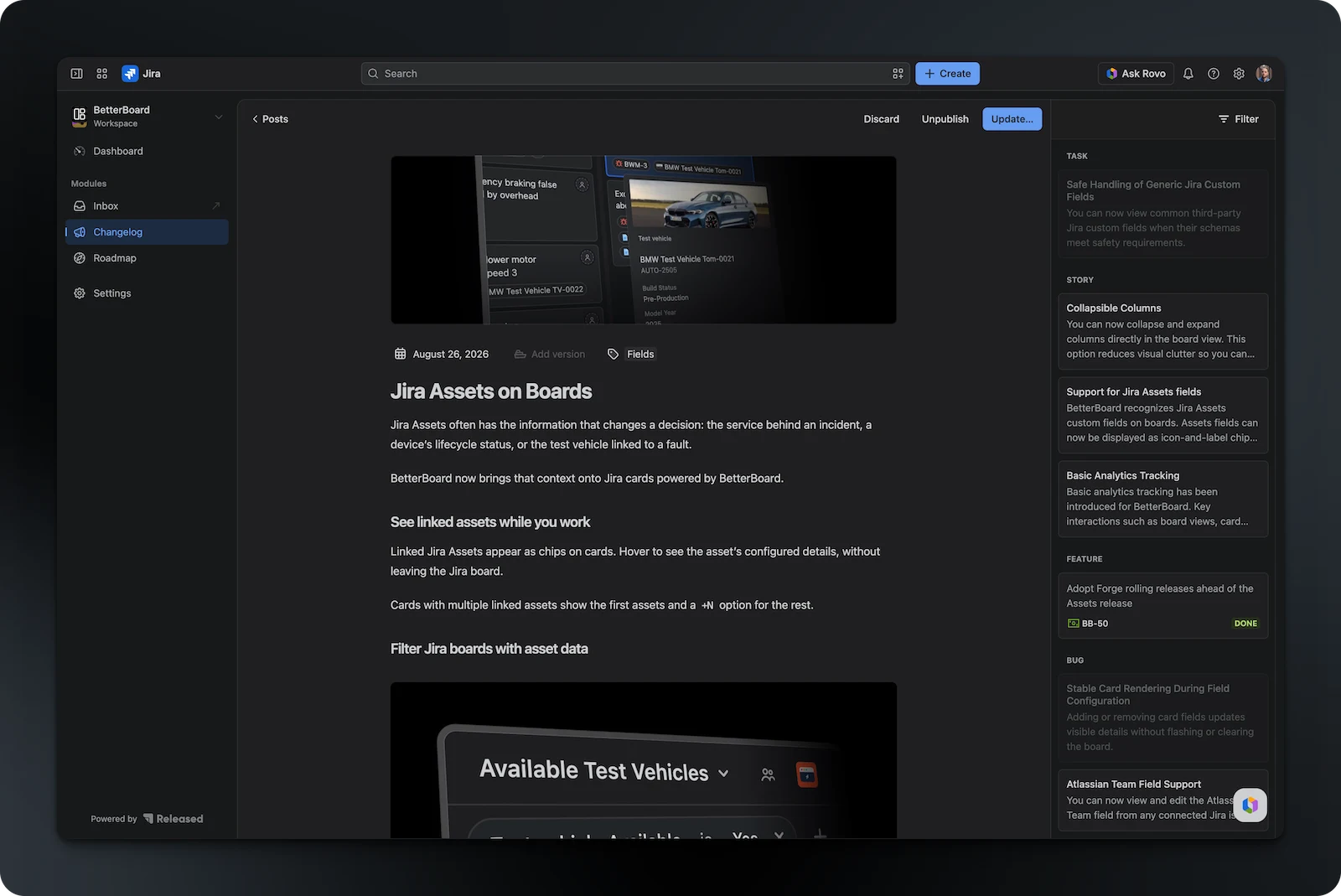
In Released Hub, drafting and editing happen before publication. A team can make a person responsible for checking the update without claiming that a formal multi-step approval system is enforced by the tool. Automation saves collection and writing time; the editor still decides what is accurate and ready to share.
Adapt the explanation for the audience
Customers need the benefit, availability and next step. Support may also need troubleshooting context. An administrator might need configuration instructions. Start with the same verified change, then adapt the explanation and choose an appropriate destination. Publishing to several channels does not, by itself, mean automatic customer segmentation or personalised delivery.
4. Publish the approved update where people will find it
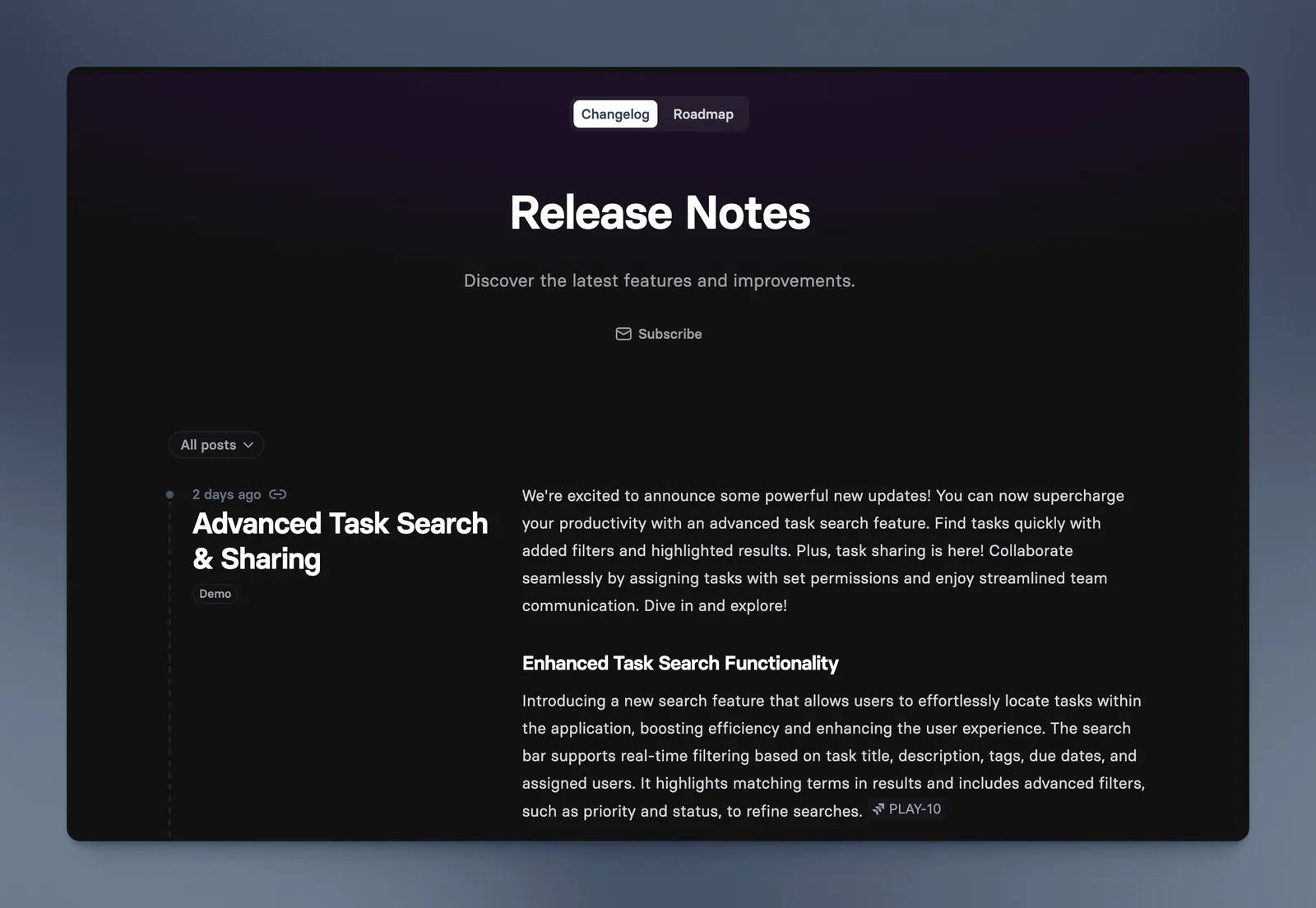
For an internal release record, Confluence can be the right destination. For a customer-facing update, publish somewhere that does not require readers to navigate Jira: an announcement page, a changelog embedded in your product or website, or a customer portal.
Released Hub AI release notes keeps this workflow close to Jira. You can filter completed issues by status and timeframe, draft and edit the update in Jira, then publish the same approved update to an announcement page, embedded widget, or Confluence. Released Hub can also notify teams in Slack when a release goes live.
Make the workflow repeatable
Release notes stay useful when the process is predictable. Define:
- An owner: who decides what belongs in the update and signs it off.
- A cadence: per version, weekly, fortnightly, or when a meaningful change ships.
- An inclusion rule: shipped and reader-relevant, rather than every completed ticket.
- A distribution rule: where the canonical update lives and which channels point back to it.
That gives your team one source of truth while allowing customers, support, sales, and internal stakeholders to use the same approved information.
Publish Jira release notes without manual copying
If your team already plans and ships work in Jira, Released Hub gives you a Jira-native path from selected work to a customer-ready update. See how Released Hub AI release notes work, or start a free trial in Jira.
If you are comparing several options before choosing a workflow, read our guide to automated release-notes apps for Jira.
Common questions
Can Jira generate release notes?
How can teams share Jira release notes with external stakeholders?
Should AI publish release notes without review?
Publish release notes your customers will read
Select shipped Jira work, turn it into a clear draft, and publish the approved update where customers will find it.