
How to capture Slack feedback and link it to Jira
Capture Slack feedback in Released Hub, connect it to Jira work and return to the original thread with an answer.
On this page
A customer asks for saved report filters in Slack. Your team discusses the request, then the conversation moves on. Three weeks later, during planning, someone asks who needed it and why.
Capturing the conversation while it is in front of you gives the team the customer’s original context. You can clarify the problem, connect it to relevant Jira work and return to the same thread when there is an answer.
This walkthrough follows that fictional reporting-product request through Released Hub, from capture to customer follow-up.
Designing Slack for discoverability
Capturing feedback starts before anyone opens an integration. If a salesperson does not know where to share a customer’s request, it may end up in a DM the product team never sees. Give people a predictable place to contribute, with channel names that describe their purpose.
For a reporting product, your channel structure might look like this:
| Prefix | Example | Purpose |
|---|---|---|
#feedback- | #feedback-reports | A place for teammates to share customer requests and observations about reporting. |
#triage- | #triage-feedback | Internal discussion of incoming requests, with a named person responsible for reviewing them. |
#ext- | #ext-acme | A shared customer channel, visibly distinguished from internal discussion. |
#announce- | #announce-product | Product updates people can find without searching through feedback discussions. |
These are naming examples, not four channels every team needs. Start with the conversations you already have. Add a channel description that explains what belongs there, who reviews it and when people can expect a response. Pin an example of a useful request, including the customer’s problem and context. Slack’s channel-naming guidance explains how prefixes, topics and descriptions help people find the right place.
Slack Connect
Slack Connect lets your team and customers work in a shared channel. For a PM, that can mean asking follow-up questions directly when a customer describes a problem. For a PMM, it can mean discussing a beta with a small group of customers and understanding what needs explaining before launch.
Agree on the channel’s purpose, who will respond and how often your team will check it. Keep internal prioritisation in an internal channel or inbox note. A shared conversation gives you access to customer context; someone still needs to capture the requests worth tracking and return with an answer.
You can start with clear channels, an agreed review routine and consistent follow-up before adding another tool. As volume grows, copying requests between Slack and planning documents makes it harder to keep the original context and remember who needs an update. The workflow below brings those selected conversations into a shared inbox while keeping a route back to the customer.
Before you start
Slack feedback capture is available in the Advanced edition. You need the integration connected to the intended Released Hub workspace and access to the Slack channel. For a private channel, invite the integration bot before capturing messages. Check the Slack integration requirements.
Choose who will triage captured requests. Saving messages is useful only if someone reviews them, asks questions and decides what happens next.
-
1. Connect the Slack workspace
- In Released Hub, open Global Settings → Slack under Integrations.
- Choose Connect Slack, or add another connection.
- Select the Slack workspace.
- Select the Released Hub workspace that should receive its feedback.
Try the connection with a sample message and check that it arrives in the intended inbox before asking the team to use the workflow. The connection guide covers setup and access.
-
2. Capture the message you want to track
Imagine a customer writes in a shared channel:
Could we save report filters? Our operations team rebuilds the same weekly view each Monday.
Open the message’s ⋯ menu and select Create Hub Feedback. Alternatively, use
/captureor/releasedto capture feedback in a channel or thread.The captured feedback includes the message, its author and its context, with a link back to Slack. Open the resulting inbox item and check that you have captured the request you intended. See the capture instructions.
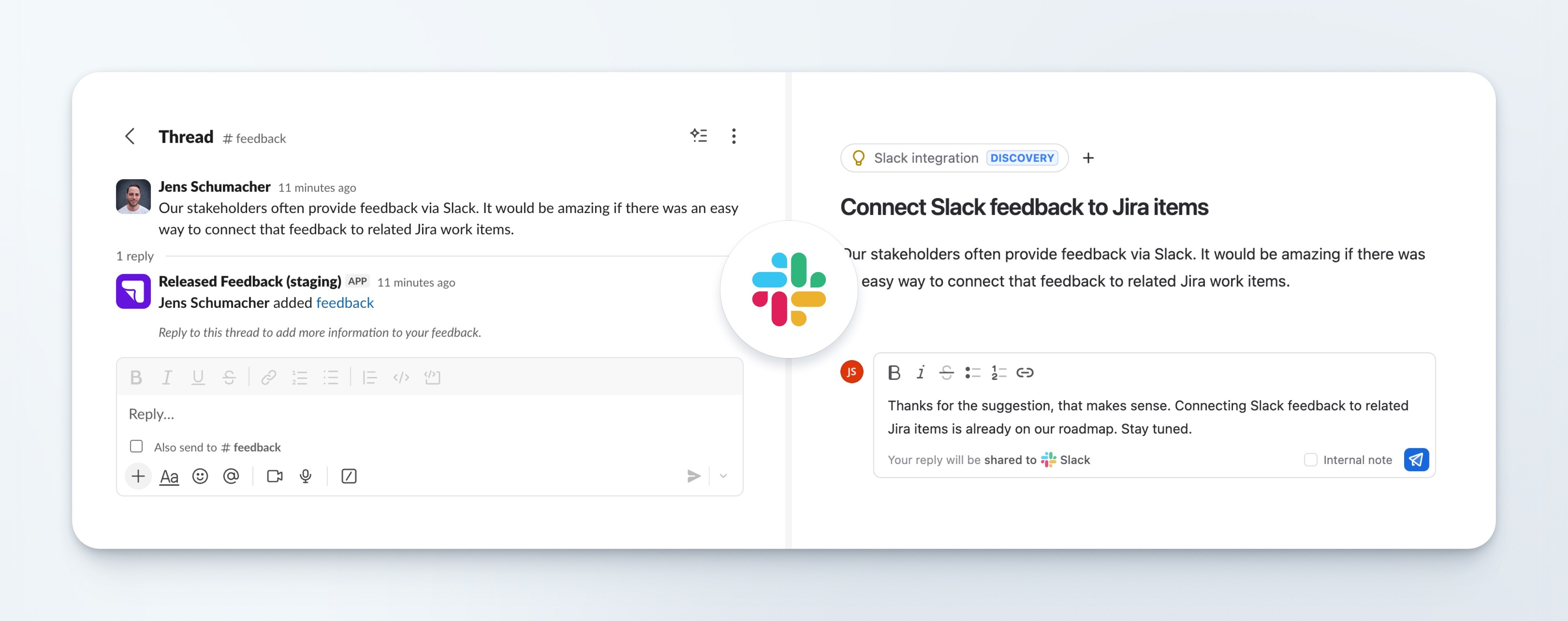
The illustration shows the conversation and the inbox together; interface labels may differ from the current version.
-
3. Clarify the problem before creating work
For the saved-filter request, ask what the weekly view contains, who uses it and what makes rebuilding it difficult. The first proposed solution may be useful, but those answers help the team understand the actual problem.
Search the feedback inbox for related requests. Another customer might describe the same need as “reusable reports” rather than “saved filters”. Review the conversations together before deciding whether the team should investigate, plan work or explain an existing option.
Use an internal note for team discussion that should not be sent to the customer. The inbox distinguishes internal notes from customer replies.
-
4. Link the feedback to the relevant Jira work
If there is already an idea or work item for reusable report views, connect the captured conversation to it:
- Open the feedback thread in the Released Hub inbox.
- Choose Add to work item, or press Shift + K. If the thread already has linked work, use the + control beside it.
- Search for the relevant Jira work item and select it.
- Check that the work item appears among the thread’s links.
The inbox guide lists the linking shortcut. In our example, the saved-filter request becomes related feedback for the reusable-report-views work item.
Captured Slack feedback
Save report filters
The operations team rebuilds the same weekly view every Monday.
- Conversation
- The original request and follow-up questions
Linked Jira work
Reusable report views
Investigate saving and reopening a report's filter settings.
- Relationship
- The captured request is linked as related feedback
Illustrative relationship between the fictional Slack request and a Jira work item. If the team decides new work is needed, create the appropriate Jira item and connect the conversation to it. Several customer requests may relate to the same problem, so review existing work before adding another ticket.
Slack feedback is linked deliberately from the inbox. The feedback documentation explains manual linking and the separate automatic link for feedback left on a corresponding roadmap item. The Jira item records the team’s work; the feedback thread keeps the customer’s explanation and the place to follow up.
-
5. Reply in the original conversation
Open the Slack feedback item, write a customer reply and send it. Replies from Released Hub are posted to the original Slack thread. The Slack overview explains that connection.
An initial reply for the example might be:
Thanks. We have linked this to our investigation into reusable report views. Which filters does your team need to keep each week?
If the capability later ships, check that it is available to that customer, then reply with the outcome and instructions. For example:
Saved report views are now available to your workspace. Set your filters in Reports, then select Save view. Here is the guide to reopening and updating a saved view.
Adapt that sample reply to the actual feature name, availability and documentation link for your product. Send the update deliberately; moving a Jira item to Done is not the same as replying to the customer.
If the team does not plan to build the request, explain that decision too. A useful outcome may be an existing workaround, a narrower solution or a clear explanation of why the work is not a priority.
Keep capture and follow-up reliable
Captured Slack message edits do not update the existing feedback item. If important context changes, add it to the conversation rather than assuming an edited source message has carried across. If capture stops working, check the connection, channel access and whether ingestion is paused. See the integration details.
If requests are scattered across channels, why Slack feedback channels lose context covers the intake habits that help the team find and review them.
Start with one customer channel and a regular inbox review. When planning comes around, the request has its original context, relevant Jira work and a conversation you can return to with an answer.
For feedback from other sources, see how to collect customer feedback in Jira. Explore Released Hub feedback to connect those conversations to your product workflow.