
How to review work across Jira, Service Management and Product Discovery
Bring delivery work, support requests and product ideas into one review, then use a Jira board to decide what needs attention.
On this page
Delivery work, customer requests and product ideas rarely live in the same Jira space. A product manager preparing a weekly review may need to check a software board, a Service Management queue and a Product Discovery backlog before deciding what needs attention.
A shared board can make that review easier to run. The useful part is not seeing every item at once. It’s choosing a small set of work, putting enough context on each card, and leaving the review with owners and decisions recorded in Jira.
This guide walks through a fictional example using BetterBoard. It also covers when a Jira board built from a saved filter may be enough.
Start with the decision the review needs to make
Suppose a product team is preparing a weekly review of account-access problems. The work is spread across three Jira spaces:
| Space | Work in the example | Question for the review |
|---|---|---|
| Software | A bug affecting the sign-in flow | Is delivery moving, and who owns the next step? |
| Service Management | Requests from customers who cannot access their accounts | Which requests need a response or follow-up? |
| Product Discovery | An idea for improving account recovery | Does the idea need more investigation or a decision? |
These are illustrative work items, not a customer case study. The team’s goal is to decide what to follow up this week; it does not need a permanent board containing every ticket and idea in the company.
Choose the spaces and work that help answer that question. Keep the scope narrow enough that the group can inspect the board during the meeting. If a support queue contains sensitive requests, check that each participant has the appropriate Jira access before using it in a shared review.
Bring the spaces onto one board
In BetterBoard, create or open a board and use the space selector beside the board name to add the relevant Jira spaces. For the example, select the software space, the Service Management space and the Product Discovery space.
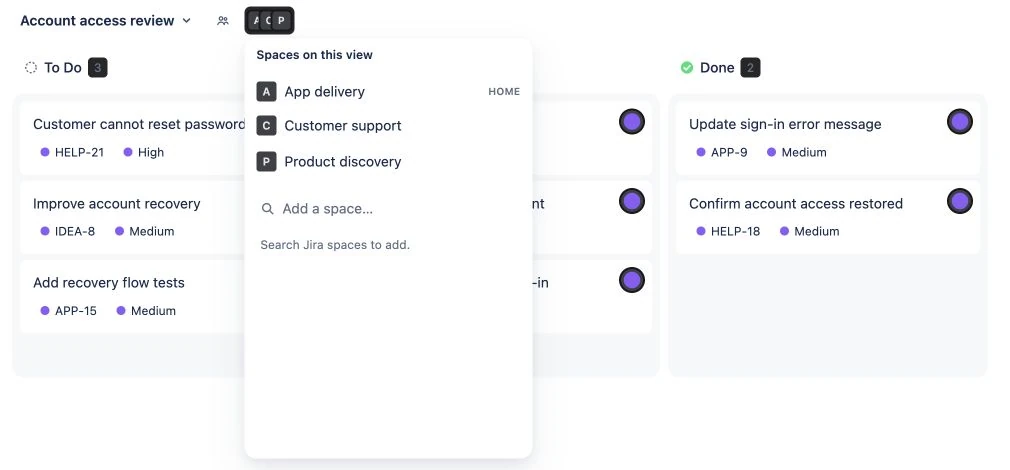
This example board uses fictional work items in a local demo.
Next, open Display and select the column count beside Columns. Map the field values for each space to the shared columns, then save the board. A team could put a software status called “In progress” and a support status called “Work in progress” under one column with a clear label.
That mapping is for the board view. The underlying work items retain their own fields and workflows. Before the meeting, look for expected work from each space and check the mapping if something is missing. See the multi-space board setup guide for the detailed steps.
Choose whether the board should be private while you prepare it or shared with the team for the review. A shared board’s configuration can be changed by people with access to the space, so agree who will maintain it. Jira permissions still determine what work a participant can access.
Put the information needed for the discussion on cards
Open Display, then Fields, and add the details the group needs in Fields in view. For this review, assignee, priority and due date might be enough to start. The support team might also add an SLA field to its request cards if that metric is useful for the discussion.
A field only appears on cards where it exists and has a value. If the idea card has no due date, adding Due date to the layout does not invent one. Check a known item in each space after saving the configuration, especially when custom fields differ across projects.
Keep the card layout useful at a glance. If a field prompts no decision during the review, it can probably stay in the work item rather than occupying space on every card. The display fields guide explains field availability and ordering.
Narrow the board during the meeting
Open Filter in the board toolbar and choose Add filter. Pick a field, an operator and a value. In the example, the team could first filter for high-priority work, then clear that filter and look at items assigned to the person coordinating the next response.
BetterBoard combines multiple filters with AND logic. If you select high priority and one assignee, the view shows work matching both conditions. Clear a condition when you want to widen the discussion again; filtering changes the view, not the underlying work.
Grouping can provide another way to review the selection. Group by space when the group wants to check each source in turn, or by assignee when the question is who owns the next step. See how to filter a board without writing JQL and group a Jira board for the corresponding tasks.
Record decisions while the context is visible
During the review, the team decides that two related work items need the same priority. Select the relevant cards, then use the selection toolbar to update Priority. Review the result on each selected item.
Only make a bulk change when the same value is appropriate for every item. Across spaces, BetterBoard offers options shared by the selected items’ spaces for a merged field. Jira permissions, field configuration and workflow rules still apply, and an individual update can fail while others succeed. Check any error and resolve that work item separately.
For a single decision, edit a supported field directly on its card. Some information, including SLA values, is read only on the board. Open the work item when the decision needs a field or action that is not available inline. The bulk-edit guide covers selection and the inline-editing reference explains the limits.
When a native Jira board is enough
If the team already has a suitable saved filter and needs a company-managed board for its review, Jira can create a board from that filter. The filter can include work from multiple spaces, including team-managed spaces. You’ll need to share the filter appropriately, confirm participants can browse the relevant spaces and map statuses to columns. The cross-project Jira board guide walks through that route.
BetterBoard is useful when the group wants to choose spaces directly, shape the card fields and filters for the review, and update selected work from the board. The choice depends on the team’s existing setup and the work it needs to perform.
Start with one review and one clear question. Once the group can see the work, identify the next owner and record the decision, adjust the board for the next meeting.
See how to set up a BetterBoard across Jira spaces or try BetterBoard on the Atlassian Marketplace.