
Jira Assets on boards: filter, colour and triage work
Use Jira Assets on BetterBoard cards to inspect linked assets, filter work by asset attributes and highlight high-risk Jira issues without JQL or AQL.
On this page
Jira Assets often contains the information that changes a decision: the production service behind an incident, the warranty status of a laptop, the owner of a microservice, or the test vehicle tied to a fault.
On a typical board, that information is a few clicks away. Open the issue, find the linked asset, open its record, then return to the queue. Repeat that across a busy board and the context is easy to miss.
BetterBoard puts linked Jira Assets on board cards, lets teams filter work by an asset or its attributes without JQL or AQL, and highlights matching cards with colour rules. It gives incident, change, fulfilment and testing teams the context they need while working through the board.
Linked assets appear as chips on each card. Hover a chip to see the asset avatar and configured attributes. Cards with several linked assets show two chips and a +N option for the rest. This works alongside the other custom fields you can show on Jira cards, so the board can surface the context your team actually uses.
Incident and change triage with Jira Assets
A Jira Service Management team is handling a rise in VPN incidents after a network change. The board contains tickets linked to business services, servers and employee devices.
One incident says “VPN access unavailable for Sydney office.” The summary and priority are visible, but the information needed to triage it sits in Jira Assets: is the affected service production, who owns it, and is it already degraded?
Hovering the linked service chip on the card reveals those details while the agent remains on the triage board. The team can see the affected service’s status, environment and owner before opening the ticket.
During a live incident, the team can filter the board to tickets linked to the VPN service, or to work connected to assets where Environment is production. There is no JQL for the issue query and no AQL for the asset criteria. A focused view remains available for the next incident or review. For the broader board-filtering workflow, see how to filter a Jira board without writing JQL.
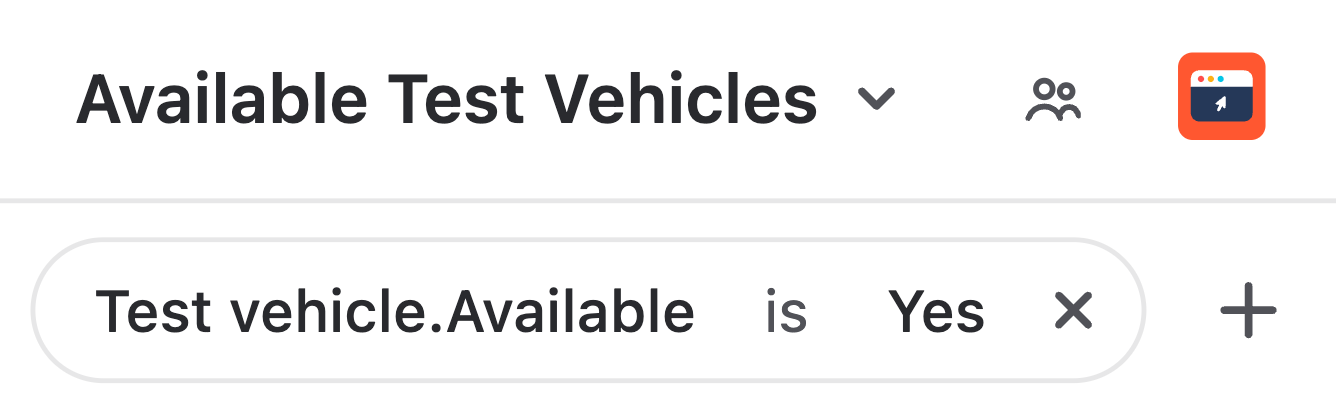
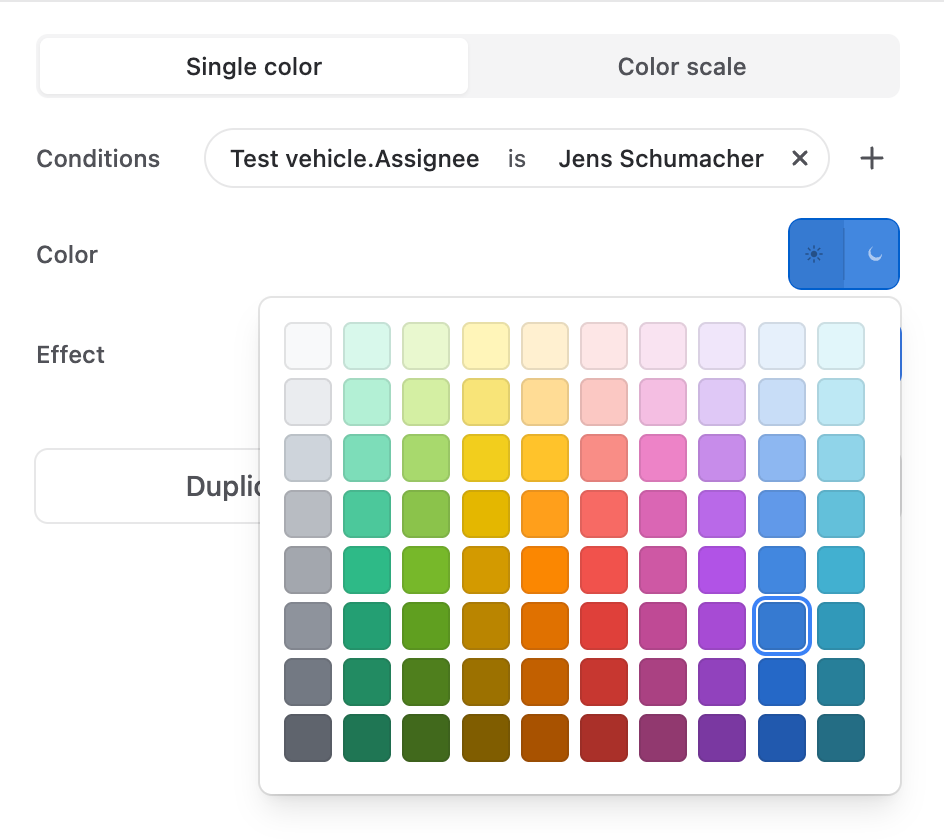
Card colouring keeps the full queue useful. Cards linked to tier-one services might be highlighted in red, production assets in amber, and test-environment work in a quieter colour. A change involving a production database, load balancer and authentication service is visible as a higher-risk item before the team opens it.
Device fulfilment with asset-based board views
An IT onboarding board tracks requests for laptops, phones and accessories. Each request links to a hardware asset with details such as model, serial number, warranty, lifecycle status and assignee.
A technician reviewing the “Ready to configure” column needs to know whether each device is actually available. One laptop may be assigned to the new starter and ready to configure. Another may still be in repair, have an expired warranty, or be assigned to somebody else.
The asset chip puts those details on the request card. The technician can hover to confirm the model, serial number and current status without opening a succession of issue and asset records.
A fulfilment lead can maintain views for requests connected to a particular laptop model, devices assigned to one office, or assets with warranties approaching expiry. The views use the existing asset data rather than specialist queries that someone needs to build and maintain.
Colouring makes exceptions visible without hiding the normal queue. Cards linked to devices in repair can stand out immediately, while standard in-stock devices remain easy to scan. The team can process routine requests and see blockers in the same view.
Service ownership and production-risk highlighting
A DevOps team tracks work against microservices, components and platforms. A card may say “Investigate elevated checkout latency,” but the board alone does not show whether it affects a customer-facing service, its service tier, or the on-call owner.
That gap slows stand-ups and incident reviews. Someone asks whether the work affects production, then the group leaves the board to find the service record.
BetterBoard shows the service asset on the card. Hovering the chip can expose the service tier, environment and owner configured in Jira Assets, so the conversation can continue with the relevant information in view.
Teams can keep a board view for tier-one services, another for work owned by the platform team, and a focused view for a service under active investigation. On the full engineering board, colour rules can identify work linked to customer-facing production services. The cards that need early attention are visible among routine maintenance and lower-risk internal work.
Vehicle test faults, models and component traceability
Testing teams can use Jira Assets in the same way. A fault ticket is created for each issue found during vehicle testing and linked to the corresponding test vehicle. The vehicle asset is connected to its model and fitted components.
A fault board may show the symptom, priority and workflow status, but that does not reveal whether the failure is isolated. A reviewer otherwise opens the issue, then the test-vehicle asset, then inspects its model and component relationships. Patterns are difficult to recognise while working through tickets one by one.
With BetterBoard, the test vehicle is visible on the fault card. Hovering its chip can show recorded attributes such as vehicle model, build, programme or test status.
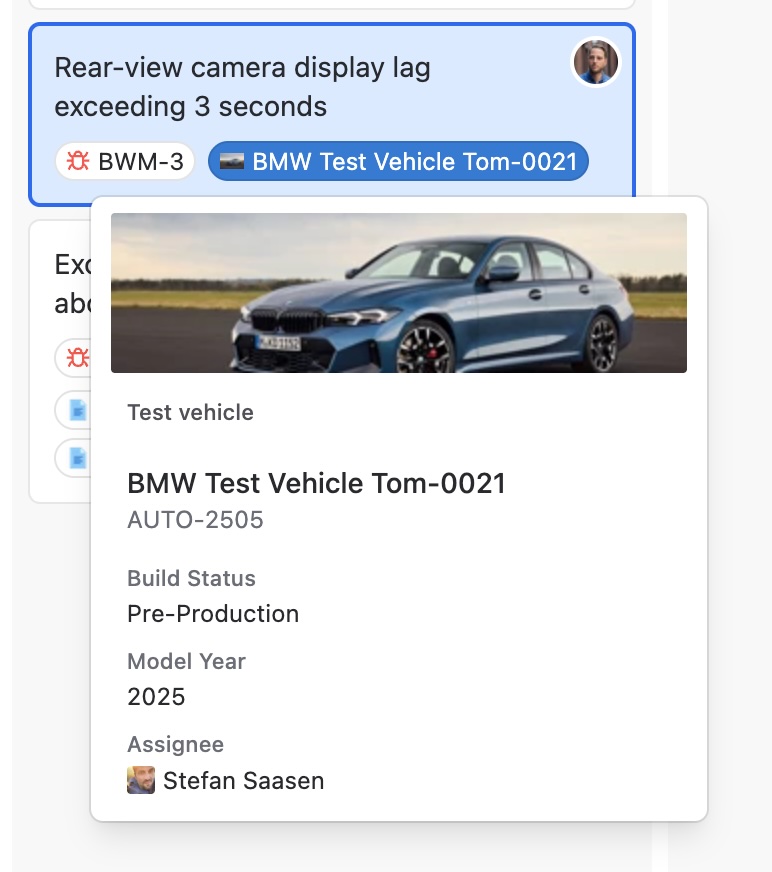
The team can create views for faults linked to one vehicle, vehicles of a particular model, or assets with an attribute associated with a component area under investigation. Those views are useful for recurring investigations and engineering hand-offs.
Colour rules can then highlight faults from a pre-production prototype, a particular model, or vehicles fitted with a component under review. Looking across the board, the team can see whether failures are concentrated in one prototype or appearing across a fleet.
BetterBoard is built on Atlassian Forge and runs inside your Atlassian Cloud tenant. It respects the Jira permissions your team already has, so asset information remains governed by the access model configured in Jira.
Try BetterBoard on the Atlassian Marketplace, or learn more about BetterBoard.