
How to publish Jira Product Discovery roadmaps
Publish a native JPD view, check sharing permissions, choose visible fields and test access for your intended audience.
On this page
Jira Product Discovery lets you publish a roadmap view without giving readers access to your discovery backlog. You choose the ideas and fields they see, then share a published link.
The setup depends on who needs access. This guide covers native JPD publishing, from enabling it and preparing the view to checking access and keeping the shared roadmap current.
For other sharing options and the customer-portal workflow, see how to share your Jira roadmap with customers.
Roadmaps and views
A roadmap communicates your product direction and priorities. A view presents the underlying ideas in a particular way, such as a list, board or timeline. You can use different views of the same ideas for leadership, sales or customer conversations.
JPD also has a Roadmaps feature for combining ideas from multiple spaces, available on Premium. Check its creation requirements and roadmap permissions separately from the view-publishing controls below.
-
Step 1 Check publishing access
Publishing must be enabled by a site admin. Space admins can delegate publishing to creators; contributors cannot publish. Public-link sharing has separate controls and is available on Standard and Premium.
Ask your site admin to open Jira apps → Jira Product Discovery → Access and turn on Enable published views. To share with people who do not have an Atlassian account, the admin must also turn on Enable publishing views to anyone on the Internet. Your organisation’s data security policy may restrict this option.
If you are a creator and still cannot publish, ask your space admin to grant publishing permission through Space settings → Access. Permission to publish a view and permission to publish it to anyone with the link are separate controls.
Check Atlassian’s publishing requirements if the option is missing or your organisation restricts external sharing.
-
Step 2 Prepare a view for the audience
Decide what readers should learn before opening the publishing dialog. For a leadership review, that might be the quarter’s priorities and the decisions still open. For a customer discussion, it might be a small set of improvements relevant to their team.
Review the item names, selected work and dates. For example, an internal title such as “Consolidate notification settings” may need an explanation of which customer problem the work addresses. Keep the description honest about what is planned and what is still uncertain.
Check the view’s filters and sorting before publishing. Confirm that they select the intended ideas and put the priorities in a useful order. Then choose which fields readers need and hide details that would distract from the conversation. Some fields cannot be used for filtering, sorting, grouping or other view configurations when publishing; check Atlassian’s supported configurations if the view will not publish.
Use the view description to explain the goals behind the work and how it supports your product strategy. Give the view a clear name so readers know which product, audience or planning period it covers.
If you need help choosing a layout, see the JPD views guide. For audience and content choices, use what to show on a public Jira roadmap.
-
Step 3 Publish the view
- Open the required view in your Jira Product Discovery space.
- Select Share → Publish.
- Open Settings in the publishing dialog and choose the fields and description to display.
- Select Preview and review the result.
- Select Publish, then Copy publish link.
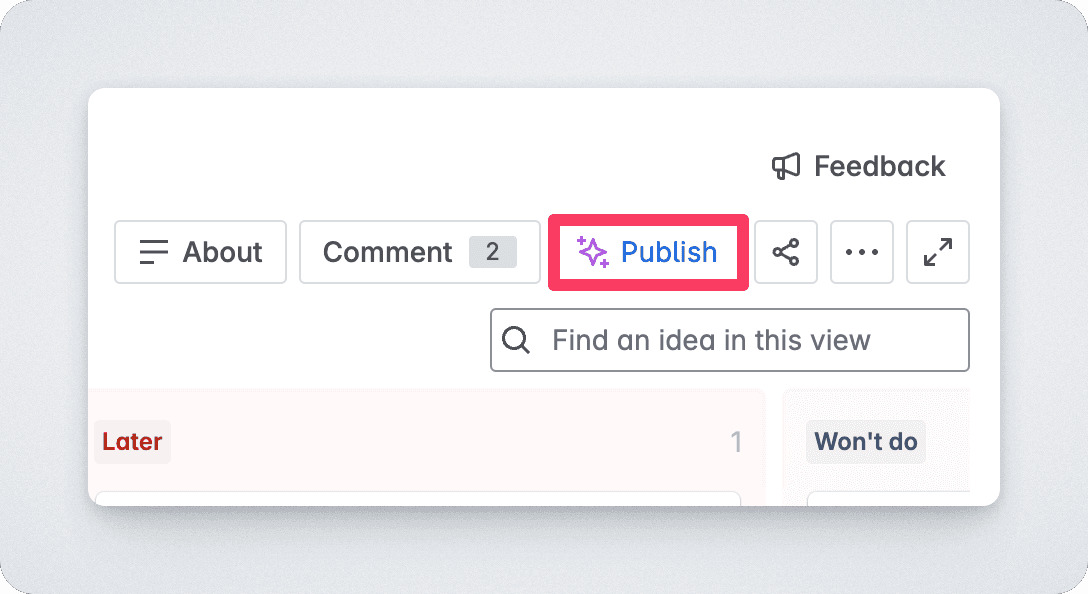
The publishing control in an earlier JPD layout. In the current layout, open Share and select Publish, as described above. Public-link sharing, when enabled, can let people without an Atlassian account open the view.
Choose the intended audience deliberately: sharing within your site and publishing for anyone with a link have different access implications. Confirm the applicable settings before distributing the link in email, Slack or Confluence.
For stakeholders with Atlassian accounts, published views can be shared with specific people, groups or everyone on your site. A public link lets people read the selected information without signing in. Atlassian explains the stakeholder access options.
Review Atlassian’s instructions for the available sharing settings and unsupported field configurations.
-
Step 4 Test the link as a reader
Open the published link using the access your intended audience will have. Check that the expected items and fields are visible, that descriptions make sense, and that the person can open the view.
For an external audience, ask an intended recipient to check access before distributing the link widely. Testing only as an administrator can hide a permissions problem.
Include a short explanation with the link: what the roadmap covers, who maintains it and how readers should ask questions. A recipient should not have to infer whether the dates are commitments or planning estimates.
-
Step 5 Review changes and remove access when needed
Atlassian identifies a published view with a green globe near Share. Open Share → Publish to review its publication settings.
Published JPD views show the selected ideas and fields in real time. Changes to the planning information flow through to the published view, so you do not need to publish a new snapshot for each content update. Atlassian describes this live, read-only behaviour here. To change which fields or descriptions readers can see, return to Share → Publish → Settings.
After changing the underlying view or its publication settings, reopen the published link and check the result. Review it when priorities change, before a stakeholder meeting and when the intended audience changes.
Review who can access the view as well as what it contains. A link shared for last quarter’s review may no longer be appropriate for today’s plans.
Tell readers about significant changes to priorities or timing and explain why they changed. A maintained link gives them a place to check the plan, but it does not replace that conversation.
To stop publishing the view, open Share → Publish and select Unpublish. Atlassian documents unpublishing here.
When a customer portal is a better fit
A published JPD view can be enough when readers need access to selected planning information. Released Hub roadmaps are an option when you want a customer-facing roadmap alongside feedback and release updates in a branded portal.
For that workflow, follow how to publish a public roadmap with Jira. It starts with installation and selecting the Jira projects, then covers board or timeline structure, public descriptions, fields, access and publication. You can create separate roadmaps for different audiences and map each project’s supported field values to the columns that tell the right story.
Choose a board when readers need to understand priorities and progress, or a timeline when the timing is part of the conversation.
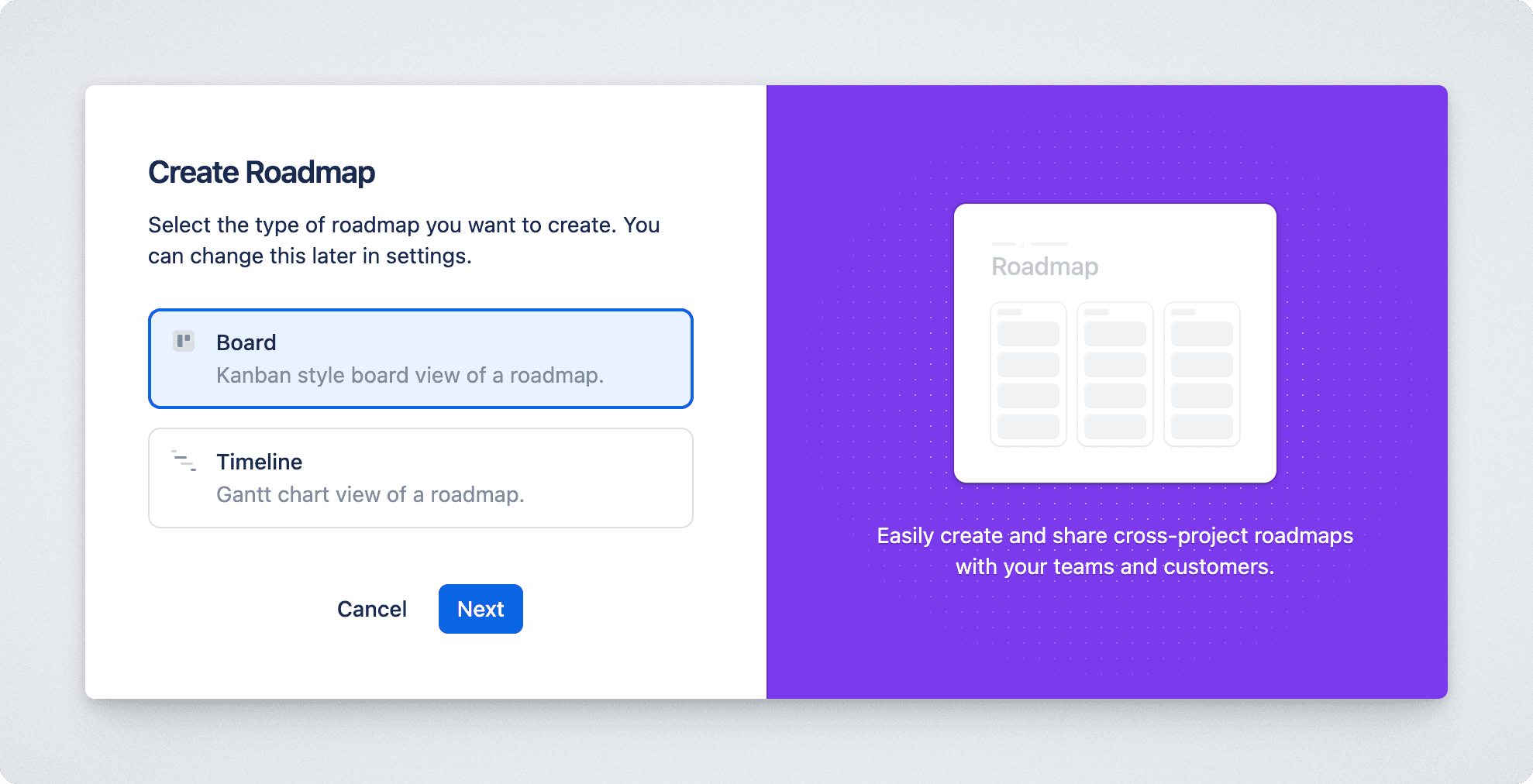
Released Hub lets you review and publish a snapshot of the roadmap, then re-publish when an update is ready for readers. You can share the portal URL or embed the portal in your website or app.
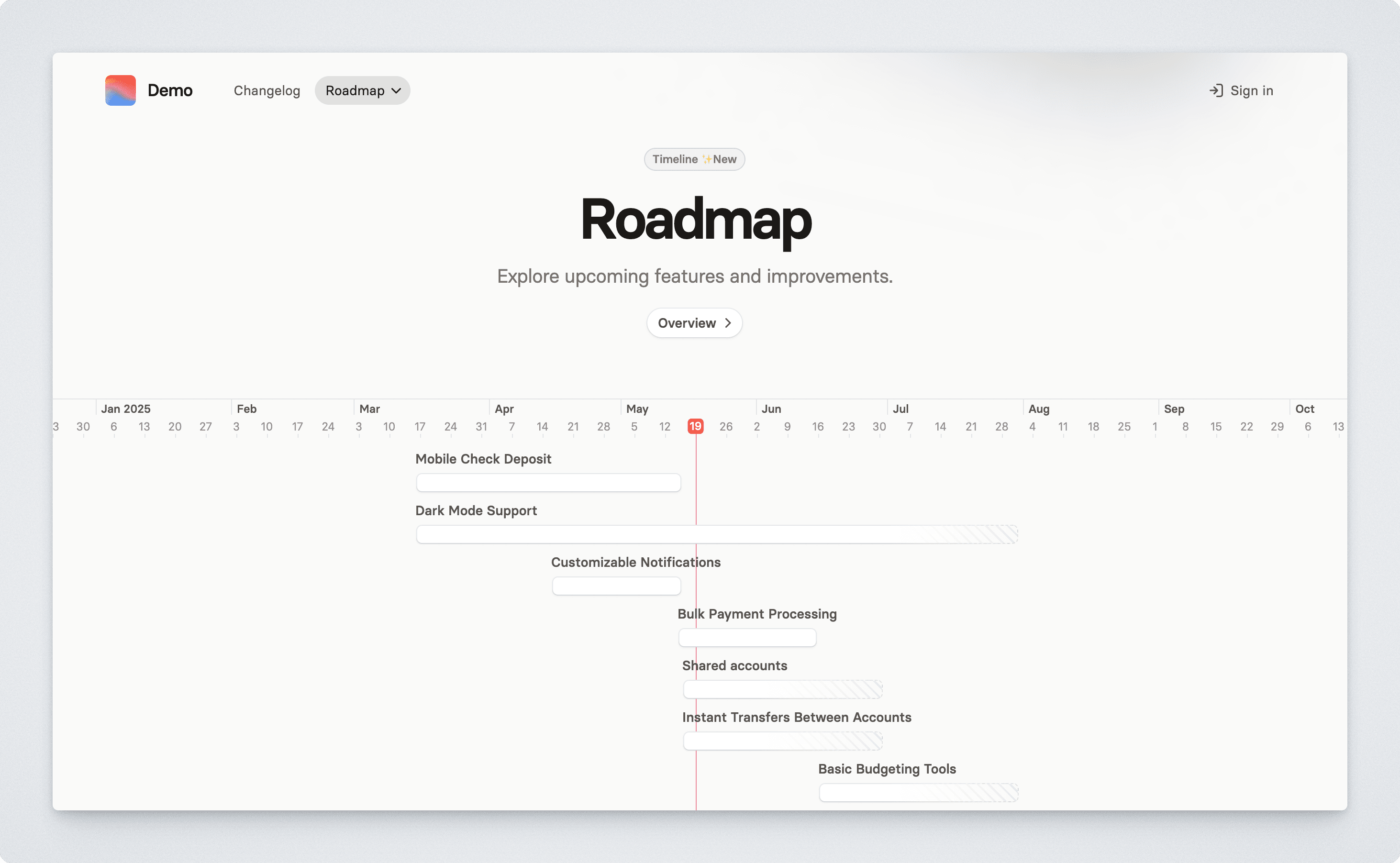
Choose the theme and colours in the Product Hub design settings, then review the portal’s title, supporting copy and visible modules. That presentation is separate from the roadmap’s item and field choices. The portal configuration guide covers those settings.
Upload your logo in the workspace settings so the portal is recognisable to the people you share it with.
For internal Jira links, exports and other audience-specific options, use the Jira roadmap sharing guide.