
How to publish a public roadmap with Jira
Give customers a clear view of your product plans. Learn how to select Jira work, shape a public roadmap and publish it with Released Hub.
On this page
A customer asks whether the improvement they requested is on your roadmap. Your team has the work in Jira, but the answer still means finding the right ticket, explaining its status and writing another update.
Sharing a public roadmap gives customers and stakeholders somewhere to see where the product is heading. They can understand your priorities, follow the improvements that matter to them and give you feedback while there is still time to shape the work.
When your team already plans in Jira, that work provides the starting point. The job is to turn it into a view customers can understand and return to. This guide walks through publishing that view with Released Hub, from choosing the work to sharing the finished roadmap.
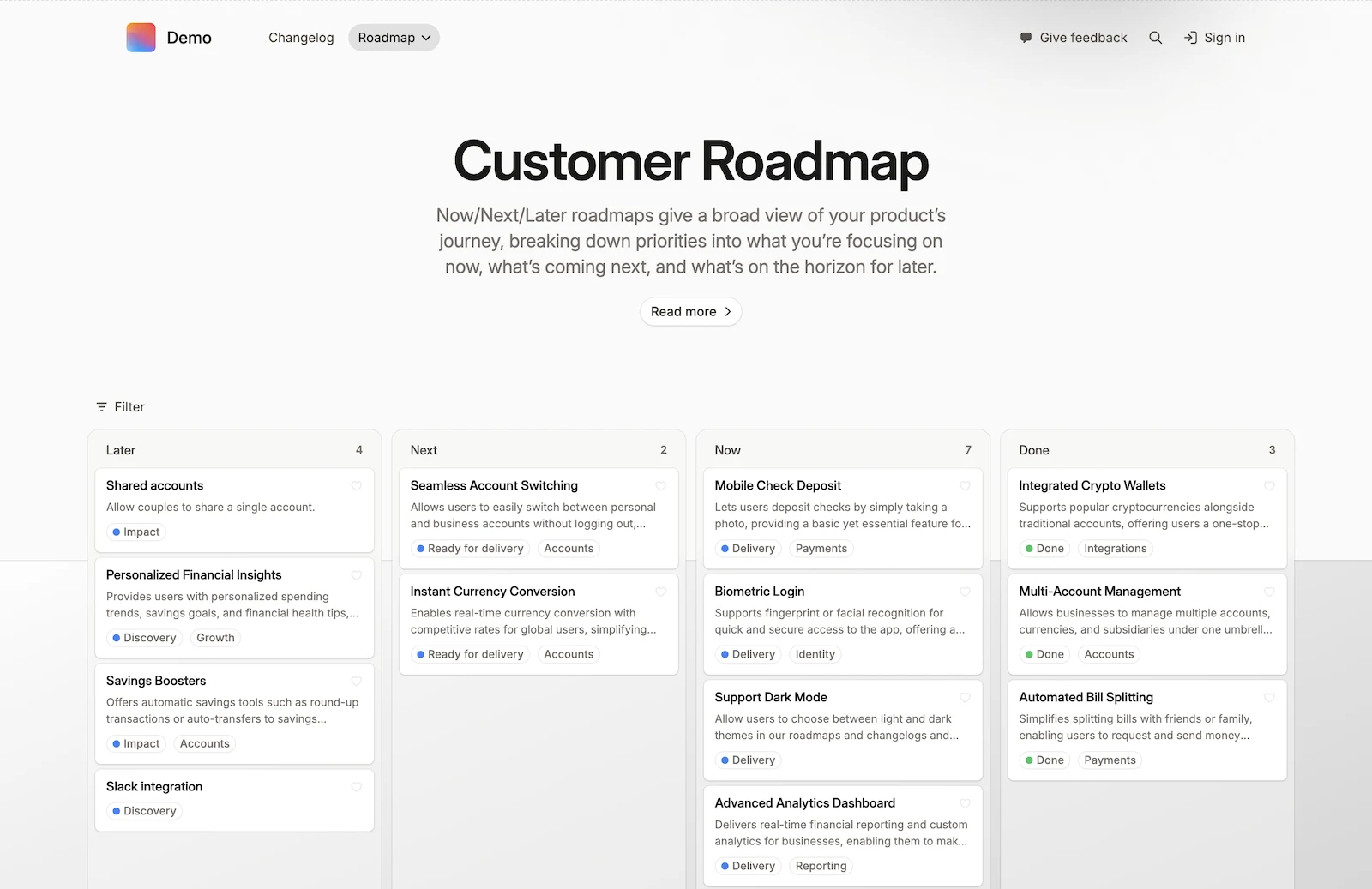
Why publish your roadmap from Jira
For a product manager, a shared roadmap helps explain which problems the team is working on and why. For a product marketing manager, it gives customer conversations a common reference: what is planned, what is in progress and what is available.
Keeping the planning work in Jira also gives you somewhere to start when priorities change. You can select the relevant work for a customer view, review the message and publish an update, without rebuilding the plan in a separate slide deck each time.
You still need to decide what customers see. Give them enough context to understand the direction without having to interpret your internal workflow. Explain where plans may change, and use dates only at a level of confidence your team can support.
Choose where customers will read it
A Released Hub portal gives customers a hosted destination for your roadmap, release notes and feedback. You can share its URL or embed the portal in your existing website or app.
The steps below use Released Hub with Jira Cloud. If you only need to publish a Jira Product Discovery view, follow the native JPD publishing guide. For other sharing options, including internal Jira links and exports, see how to share your Jira roadmap.
-
Step 1 Select the Jira work customers should see
Start with the questions your audience asks. A customer evaluating your reporting features needs to understand the improvements ahead and how they will help their team. They probably do not need the maintenance tasks behind them.
Open Released Hub from the Apps menu in Jira, then create a roadmap using the roadmap selector. If the app is not installed yet, ask your Jira administrator to follow the installation guide.
Add the relevant Jira projects to the workspace’s linked projects. When an improvement spans several teams, include their projects so the customer-facing work can appear together without copying it into a separate planning project.
Use basic filters such as issue type or labels, or JQL for a more specific selection. The roadmap configuration guide covers project selection and filtering.
For a fictional reporting product, you might include an epic for large-report exports and keep its implementation subtasks internal. Review the resulting list, including any new items that match the filter.
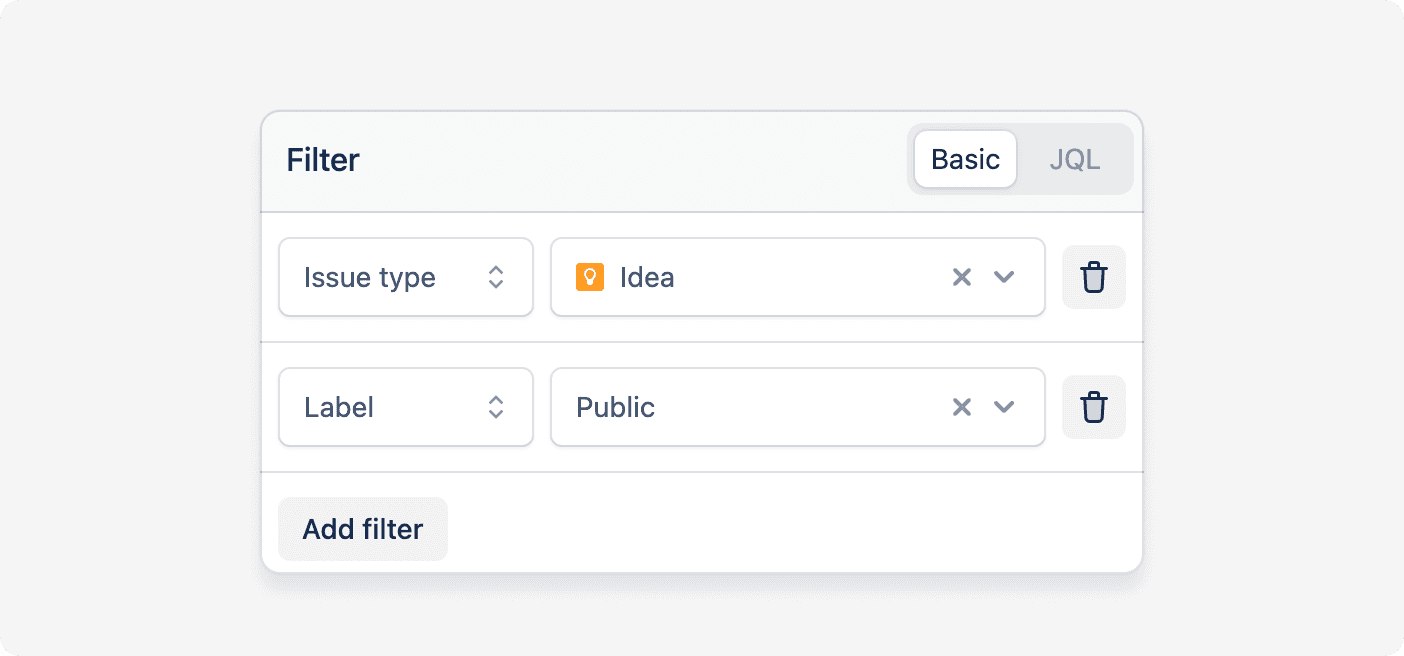
The example combines an issue type and a label to select the work for the roadmap. Your filters should reflect how your team identifies customer-facing improvements.
-
Step 2 Give your public roadmap a clear structure
Choose a board when customers mainly need to understand priorities and progress. Use a timeline when timing is important to the conversation and you have meaningful dates to share.
For a board, map the relevant Jira statuses or supported field values to customer-facing columns:
- Open Display options.
- Choose Edit columns.
- Select the supported field to map for each project.
- Drag its field options to the corresponding columns.
Different projects can map their own statuses or supported field values to the same audience-facing structure. The view configuration guide explains the controls and supported types.
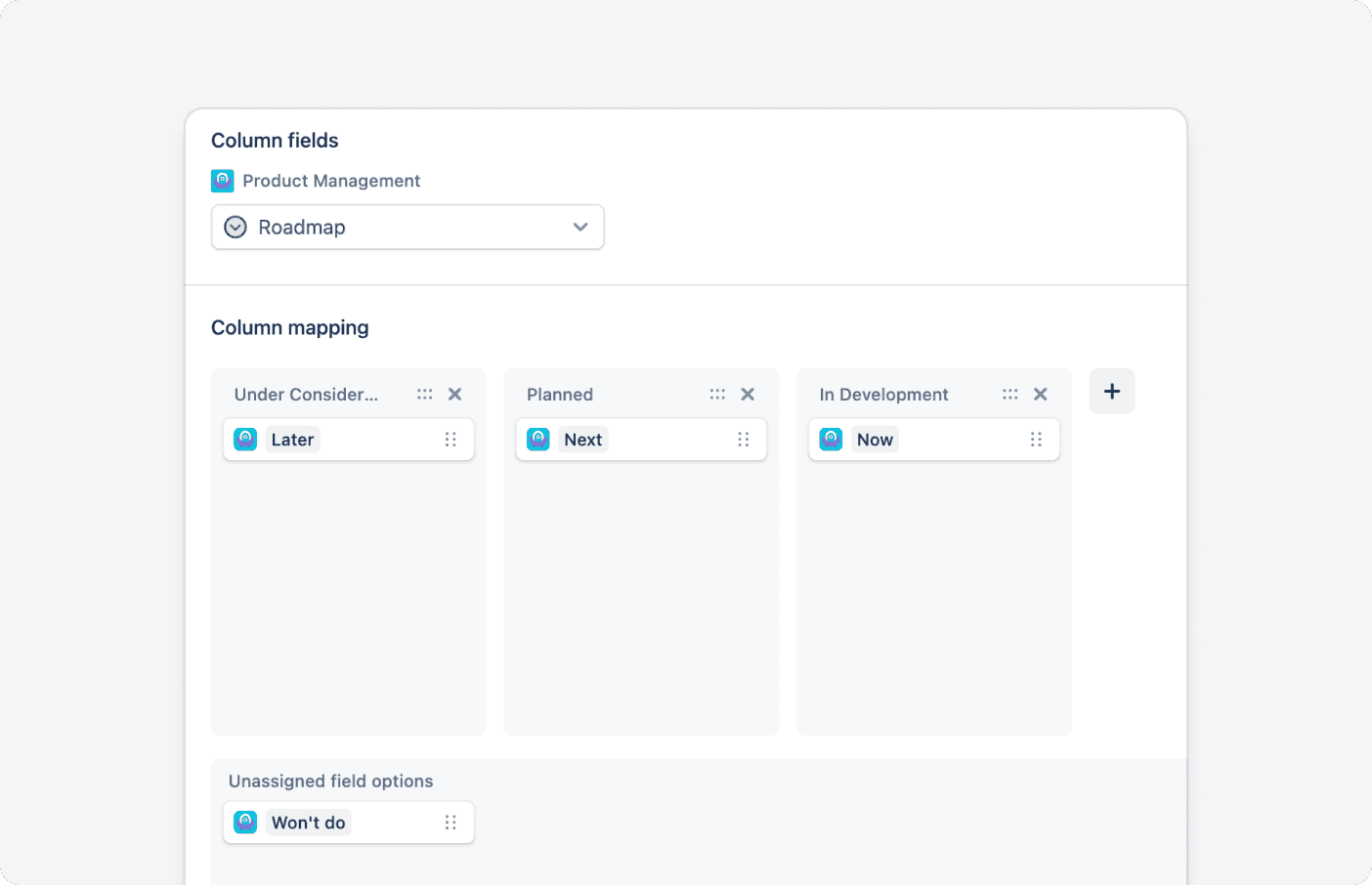
Make the labels understandable without a Jira explanation. “Planned”, “In progress” and “Shipped” may communicate more than your team’s detailed engineering stages. For help defining planning stages and expectations, see what the roadmap columns should communicate.
-
Step 3 Explain what each improvement means
In the reporting example, “Move reporting jobs to the new worker” describes the implementation. “Get large reports without keeping the page open” tells customers what the planned improvement would let them do.
Before · Internal Jira item
Move reporting jobs to the new worker
Run CSV export jobs asynchronously, with retry handling and job-state tracking.
- Internal workflow
- In development
- Working details
- Estimates, assignee and implementation notes
After · Public roadmap card
Get large reports without keeping the page open
We’re working on exports that run in the background, so you can keep working and return to download your report when it is ready.
- Progress
- In progress
- Product area
- Reporting
Illustrative before-and-after comparison for a fictional reporting product. Write a public description that explains the problem and intended outcome. Open a roadmap card to edit that description. You can also use a compatible text field for a customer-facing title. The field and description guide explains these controls.
Choose the fields shown on the card and in its expanded detail view:
- In Available fields, use + to add a field.
- Check both views: a newly added field appears on the compact card and in the detail view by default.
- Use the visibility checkboxes to show or hide it in each view.
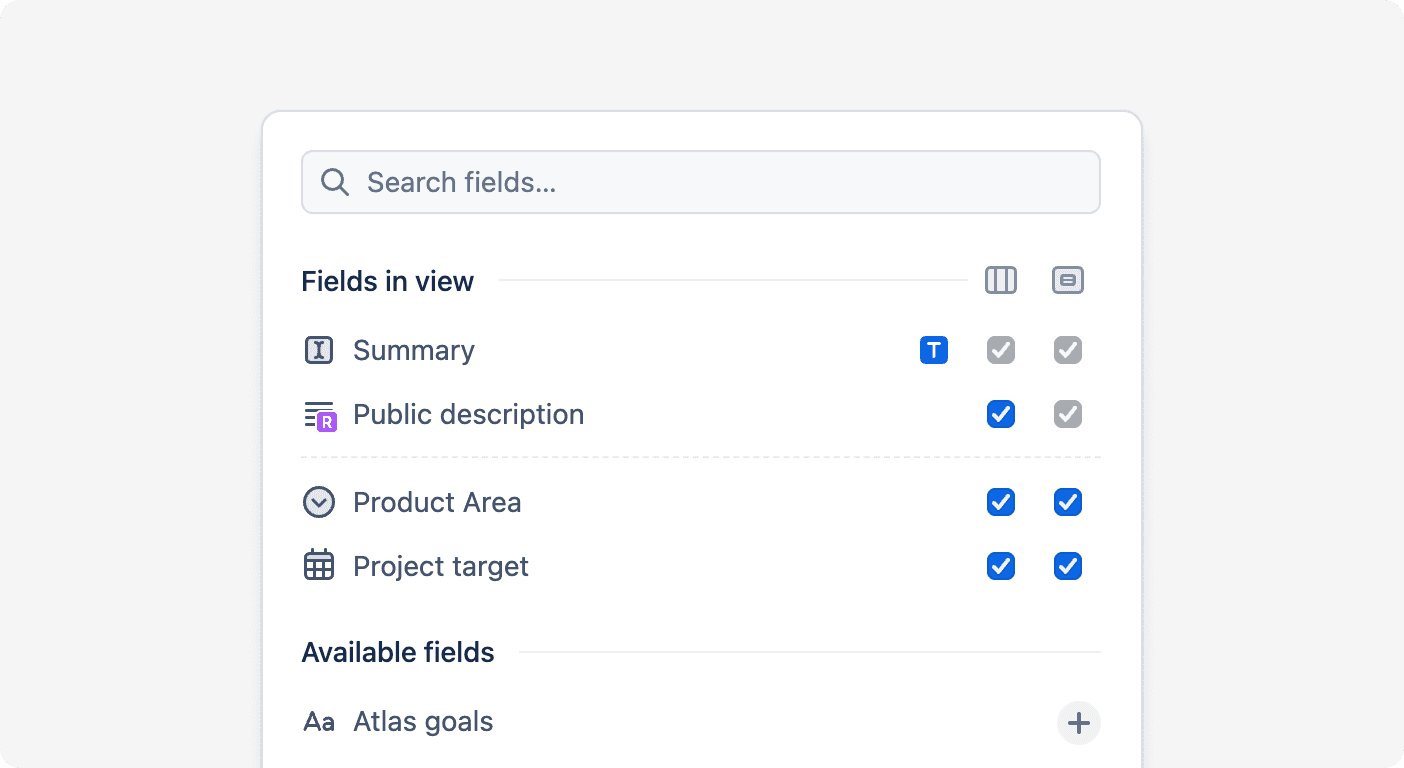
Open a card to check the complete experience before publishing. For examples of useful fields and customer-facing wording, see what to show on a public Jira roadmap.
-
Step 4 Set access for your audience
For a roadmap anyone can read, choose public portal access. A public portal remains accessible through its direct link even when it is unlisted on the product hub.
For plans intended for your organisation or selected customers, use the appropriate internal or restricted access settings. Configure access on the portal even if you plan to embed it on another page. The portal access guide explains the available controls.
For internal audiences, tailor your roadmap to stakeholder needs as well as setting access. Leadership, sales and support may need different work and details in their views.
-
Step 5 Publish and share the roadmap
When the view is ready, click Publish in the top-right corner. Make sure the roadmap module is enabled for it to appear in the portal navigation. See the publishing instructions.
Open the portal as a reader and check the roadmap, expanded cards and access. If you use an embed, check it in the page where customers will encounter it too.
Share the roadmap where the question already comes up: your product navigation, a customer email or a support conversation. Introduce it with the scope of the plan and how readers can ask questions. Give people a reason to open the link.
-
Step 6 Keep the conversation going as plans change
Give someone responsibility for reviewing the public roadmap when priorities change or work ships. Update the view, review the customer-facing information and re-publish it so readers see the approved update.
When the reporting improvement becomes available, tell customers what they can now do and link to the instructions. The Jira release-note workflow helps turn that shipped work into an announcement.
A useful roadmap gives the next customer conversation a better starting point. They can see the direction, explain what matters to them and return for progress. Explore Released Hub roadmaps to build that customer view from the work your team already manages in Jira.